
Frequently Asked Questions
To use EasyShare: If both mobile phones are vivo phones, a). Open EasyShare. Tap (Transmit file)–Send on one phone, and tap (Transmit file)–Receive on the other phone; b). When “Sender” is detected on “Receiver”, tap “Sender” and send a connection request, and agree to the connection request on “Receiver”. The connection is successfully established. Or tap the QR code in the lower left corner of “Sender” and scan it with “Receiver”; c). After the connection is established, select the file to be transferred to the other mobile phone, and tap “Send”. The file will be transferred to the mobile phone of the receiver. If the other phone is not a vivo phone, please download and install EasyShare via Google Play Store on the other phone. And then, you can follow the steps above to transfer data.
Is this helpful?
If you have forgotten the lock screen password and your phone has been locked due to multiple incorrect password entries, we hope the following actions will help you.
 If you can access your phone via fingerprint or facial recognition, it’s recommended to backup the important data at first.
1. Confirm whether the password has been changed
It is recommended to carefully recall whether anyone else has had access to your phone and changed the lock screen password, such as your friends or family members.
2. Check if you have enabled multi-user mode.
In multi-user mode, different users have different lock screen passwords. You can pull down the control center on the lock screen, tap the red profile picture, and then switch back to the “Owner” profile to try again.

3. Use old password to reset the lock screen password
If you reset your lock screen password in the past 96 hours and have forgotten the new one, but still remember the old password, you can use the old password to reset it. During the reset process, if the old password is entered incorrectly 5 times, it will no longer be usable for the reset.
Note: This is a new feature of Funtouch OS 15. If you do not see this feature after upgrading to Funtouch OS 15, please wait for the next update.
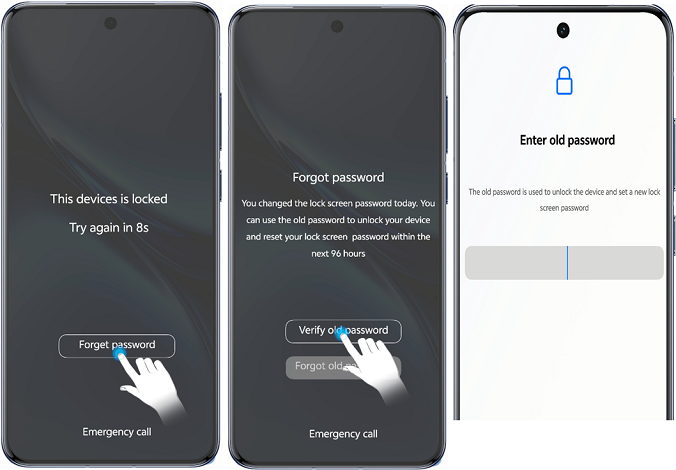
4. Retrieving the lock screen password using security questions
Some earlier models support retrieving the lock screen password using security questions. If you remember the security questions, enter the incorrect password 5 times on the lock screen, then tap “Forgot password” and enter your security questions to reset the lock screen password.
5. Restore the phone to Factory Settings via Find My Device function
If your phone is in under parental control of Family link, the factory reset will be restricted.
This operation erases all data from the device and cannot be recovered.
Please go to https://www.google.com/android/find > sign in to your Google Account > select the device you want to clear > click FACTORY RESET DEVICE
Notice: You can check Google Help page to find the detailed information about how to use this function: https://support.google.com/android/answer/6160491?hl=en&sjid=5393086953514545776-AP
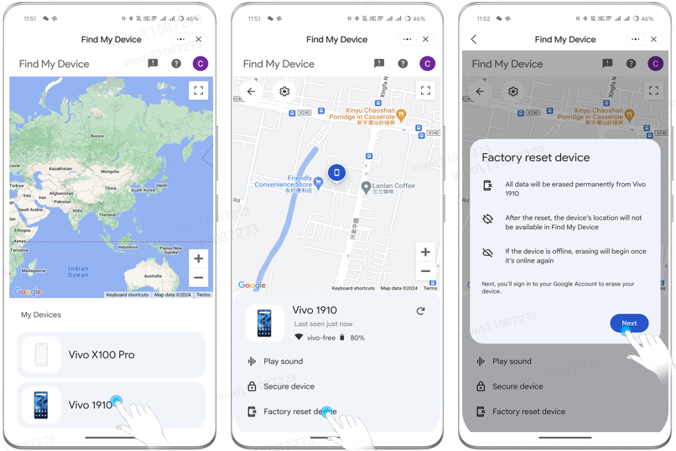
Due to Google security protection mechanisms, even after clearing data, your phone will still require you to enter your lock screen password when you turn it on.
You can unlock it by clicking “Use my Google account instead” below and verifying the Google account password that was originally logged in on your phone. So please make sure that you remember the Google account and password.
If you forget your Google account password, please refer to the link below to to retrieve the password of your Google account for a try:
https://support.google.com/accounts/answer/41078?hl=en&ref_topic=3382255&sjid=9969617088695357104-AP
6. Restore the phone to Factory Settings via Recovery mode ( Only some models support this function)
If your phone is in under parental control of Family link, the clear all data will be restricted.
This operation erases all data from the device and cannot be recovered.
1). Enter the Recovery mode
When the phone is powered off, press and hold the ” Power ” button and the ” Volume Up ” button at the same time until the FASTBOOT interface appear to enter FASTBOOT mode. Then, press the “Volume Down” button to select the “Recovery mode”, and press the “Power” button to confirm entry.
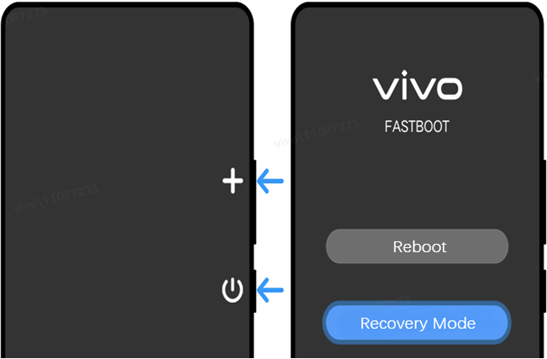
For foldable screen models: Please unfold the screen first and follow the above steps; For NEX 3 : In the powered-off state, press the top round button for 1-2 seconds, then press the “Volume Up” button to enter the FASTBOOT screen, and follow the prompts to enter the Recovery mode.
If you forget your Google account password, please refer to the link below to to retrieve the password of your Google account for a try:
https://support.google.com/accounts/answer/41078?hl=en&ref_topic=3382255&sjid=9969617088695357104-AP
2). After entering Recovery mode, click Clear data > Clear all data and confirm, then all data and password of the phone will be erased.
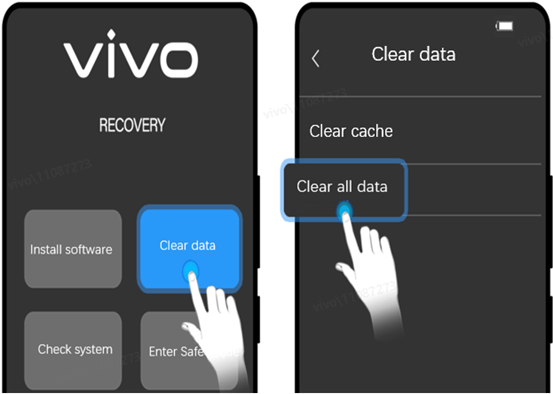
7. Go to the service center
If none of the above operations work, bring your mobile phone and proof of purchase to the customer service center for further assistance.
Kindly reminder:
Some earlier models support retrieving the lock screen password using security questions. If you remember the security questions, enter the incorrect password 5 times on the lock screen, then tap “Forgot password” and enter your security questions to reset the lock screen password.
Go to iManager > Utility tools / swipe up on the screen>App encryption > Set up a password > App encryption > turn on the app switch to encrypt it.
Is this helpful?
Save your screen from a local tempered glass and use an original protective film instead!
In daily life, to protect mobile screen, people like to use tempered film on their phones sold by mobile repair shops. The actual reason behind mobile screen related issues does not lie in the quality of the mobile phone but the kind of protective film used on it. Local tempered glass and unskilled process of attaching the film can easily lead to the malfunctioning of the phone.
Therefore,
We highly encourage the users to apply the original Protective film given by vivo authorized channels.
Using UV-glue while applying tempered-glass screen protector may cause the following problems:
- UV glue is used while attaching the UV protective tempered glass on mobile screen, but when the air bubbles are discharged, the UV glue easily penetrates into the receiver or the side keys of the phone, causing unwanted noise in the receiver and the side keys might get stuck or function improperly.
If for any reason, UV-glue tempered glass screen protector has to be used, then following points must be ensured:
- In order to prevent the UV glue from leaking into any phone port and thereby affecting the functioning of phone, one should use sealing film provided with the phone to seal and protect the phone ports before applying the tempered glass screen protector on the phone screen. The sealing films can be removed once the tempered glass screen protector is pasted on the screen.
- Phone ports includes receiver, power button, volume button, speaker, SIM card tray, main microphone and secondary microphone. Here’s how one can use sealing film.
Is this helpful?
Ut bibendum a adipiscing purus massa a facilisi congue parturient condimentum urna donec per adipiscing cursus nisl nam tristique parturient id.
Aliquam quam at et in ipsum at venenatis a eget dignissim aliquam tincidunt ultrices lacus ad consectetur imperdiet sem suspendisse ante a dapibus potenti.Eu parturient parturient magnis tempus molestie augue quam vulputate hac facilisis est nisl pretium a cursus.
 All Products
 T Series
 X Series
 Y Series